


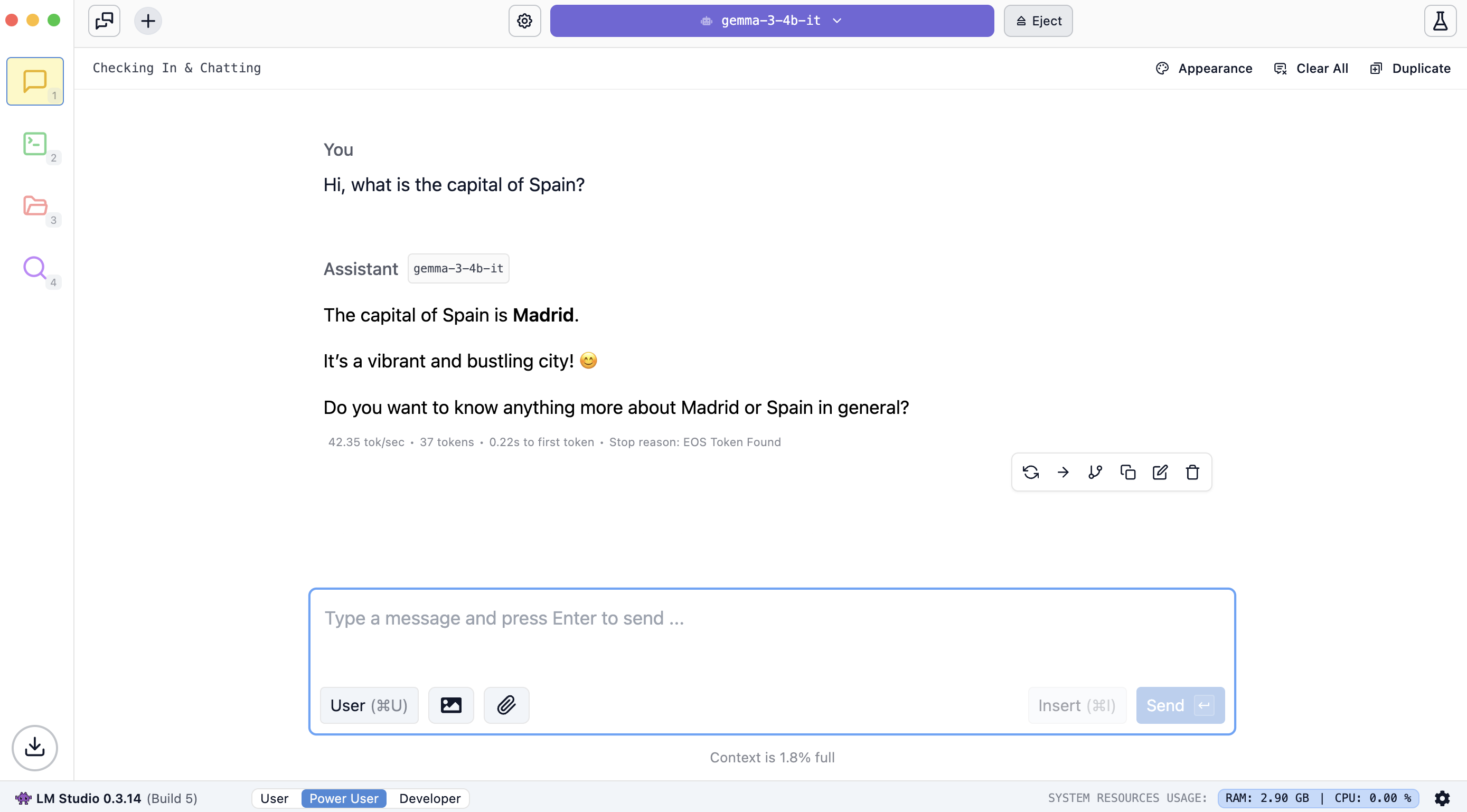
The Rundown: Learn how to run powerful AI models directly on your own computer for complete privacy, zero cost, and offline use without sending data to external servers.
🧰 Who is this useful for:
- Privacy-conscious users who don't want their data sent to third parties
- People wanting to use AI while offline or in low-connectivity environments
- Budget-conscious users looking to avoid subscription fees
- Developers and enthusiasts who want more control over their AI tools
STEP 1: Choose Your Local AI Platform
There are two main options for running AI locally on your computer:
- Ollama: Command-line focused, developer-friendly, highly customizable
- LM Studio: More user-friendly interface resembling popular AI chatbots
For this tutorial, we'll cover both options so you can choose what works best for you. Both are available for Windows, macOS, and Linux systems.
STEP 2: Download and Install Your Chosen Platform
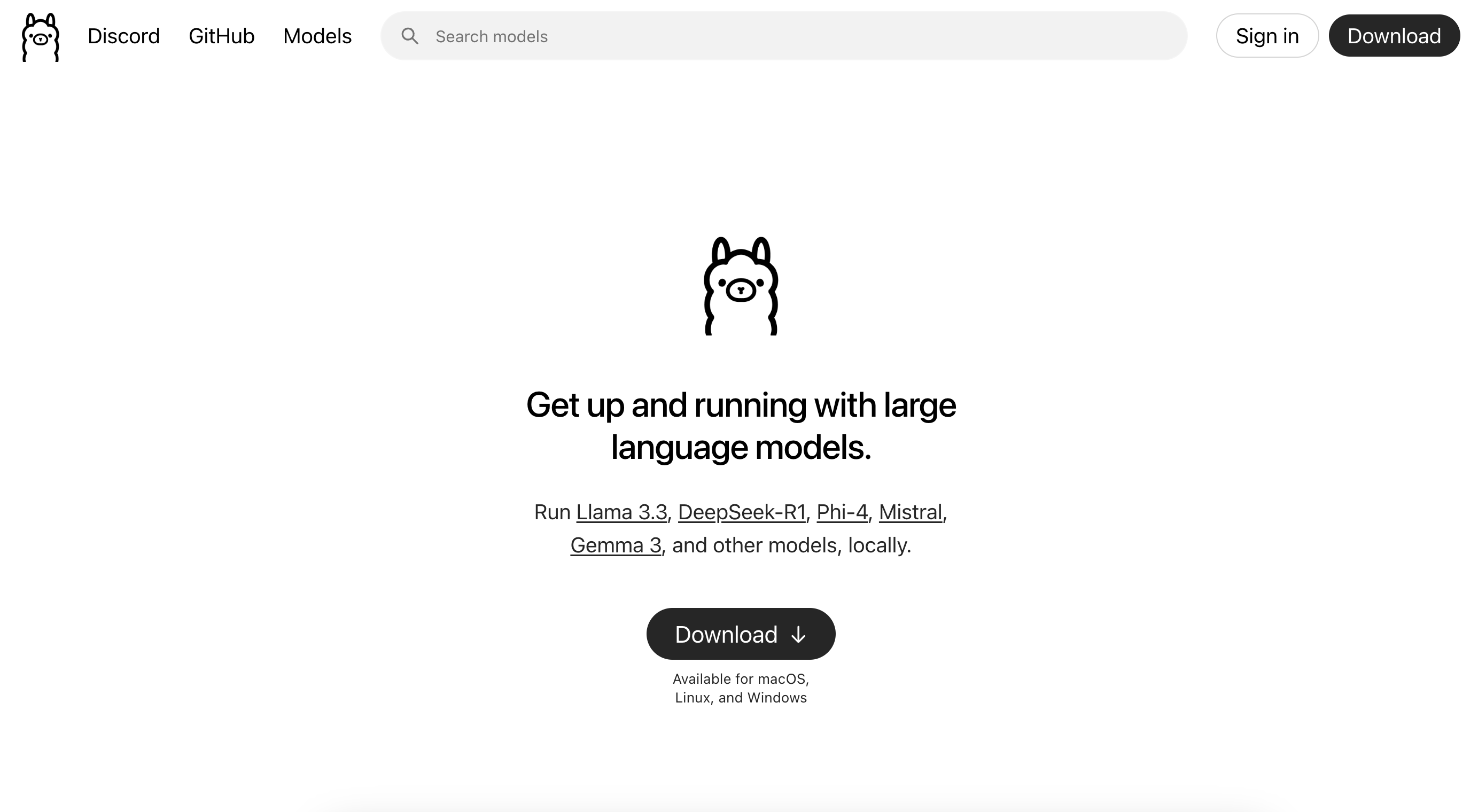
For Ollama, visit Ollama’s website and click the "Download" button. Follow the installation instructions for your operating system.
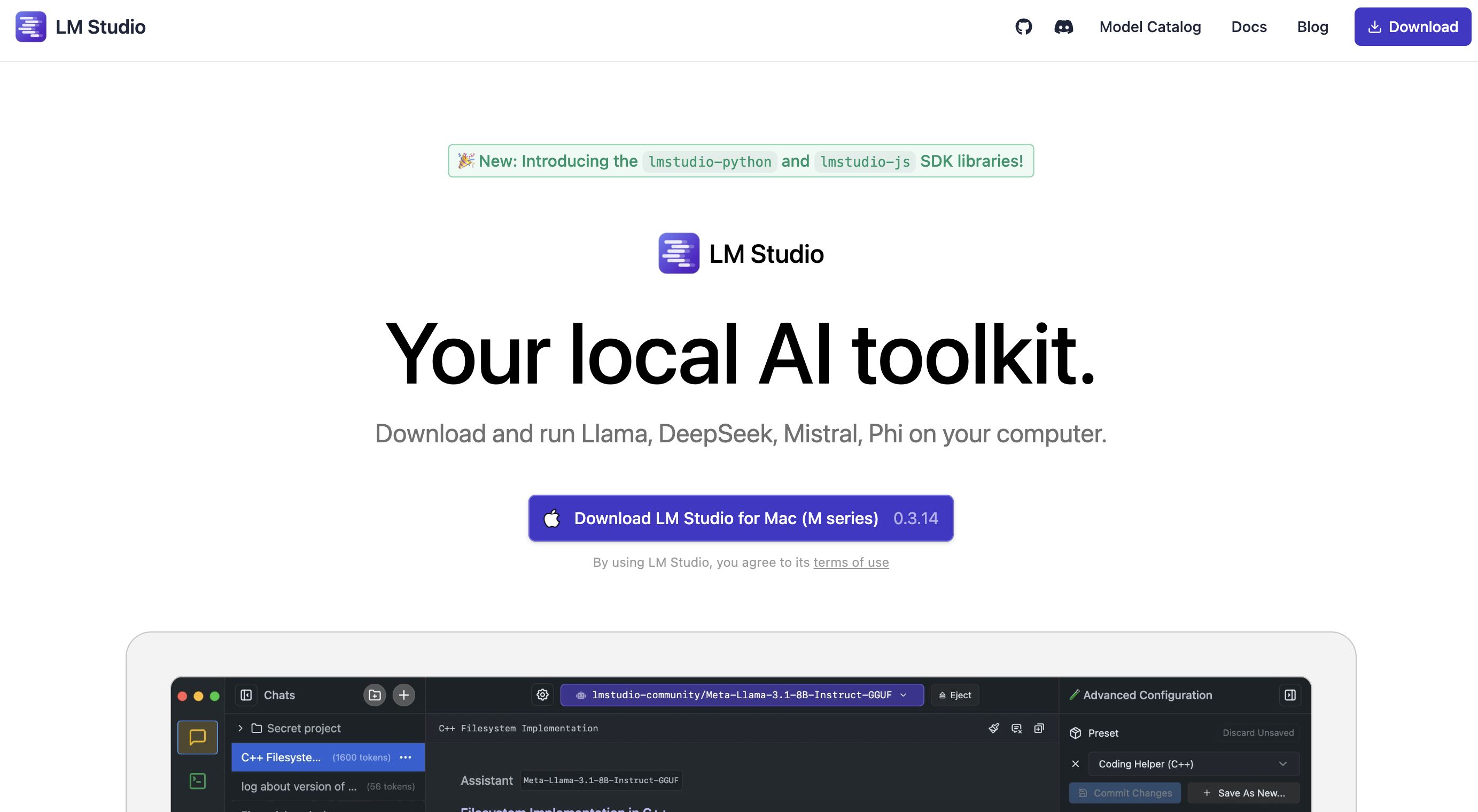
For LM Studio, head to LM Studio’s website and download the appropriate version for your system. Once installed, you'll see an interface similar to popular AI chatbots.
STEP 3: Download an AI Model
After installation, you'll need to download an actual AI model to run locally.
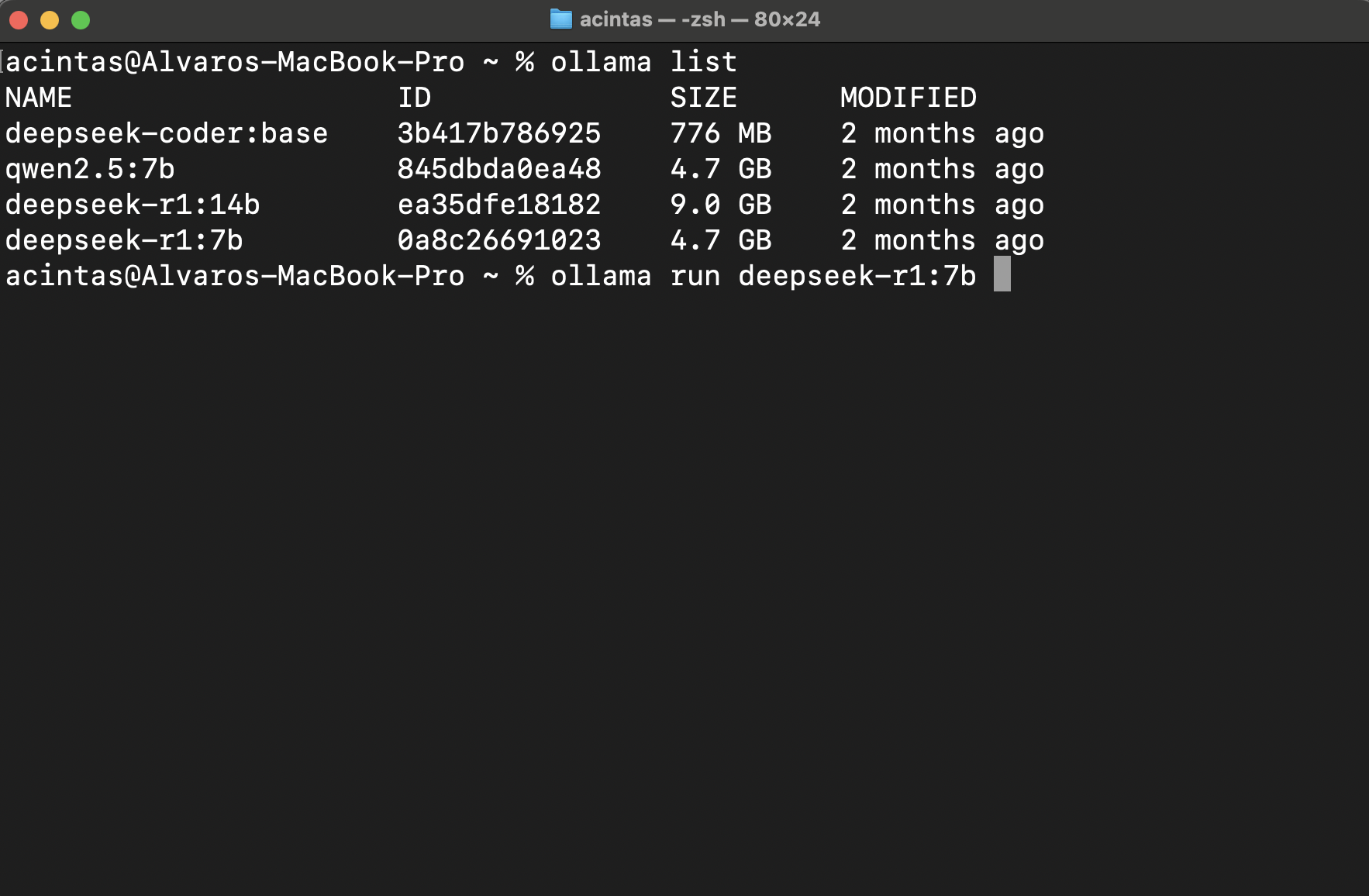
With Ollama:
- Open your terminal or command prompt
- Type ollama run followed by the model name (e.g., ollama run gemma:7b)
- The first time you run this command, Ollama will automatically download the model
With LM Studio:
- Open the application and click on "Discover"
- Browse available models: Smaller models (7B or less) work better on most computers
- Click "Download" on your chosen model
- Return to the chat interface and select "Load Model"
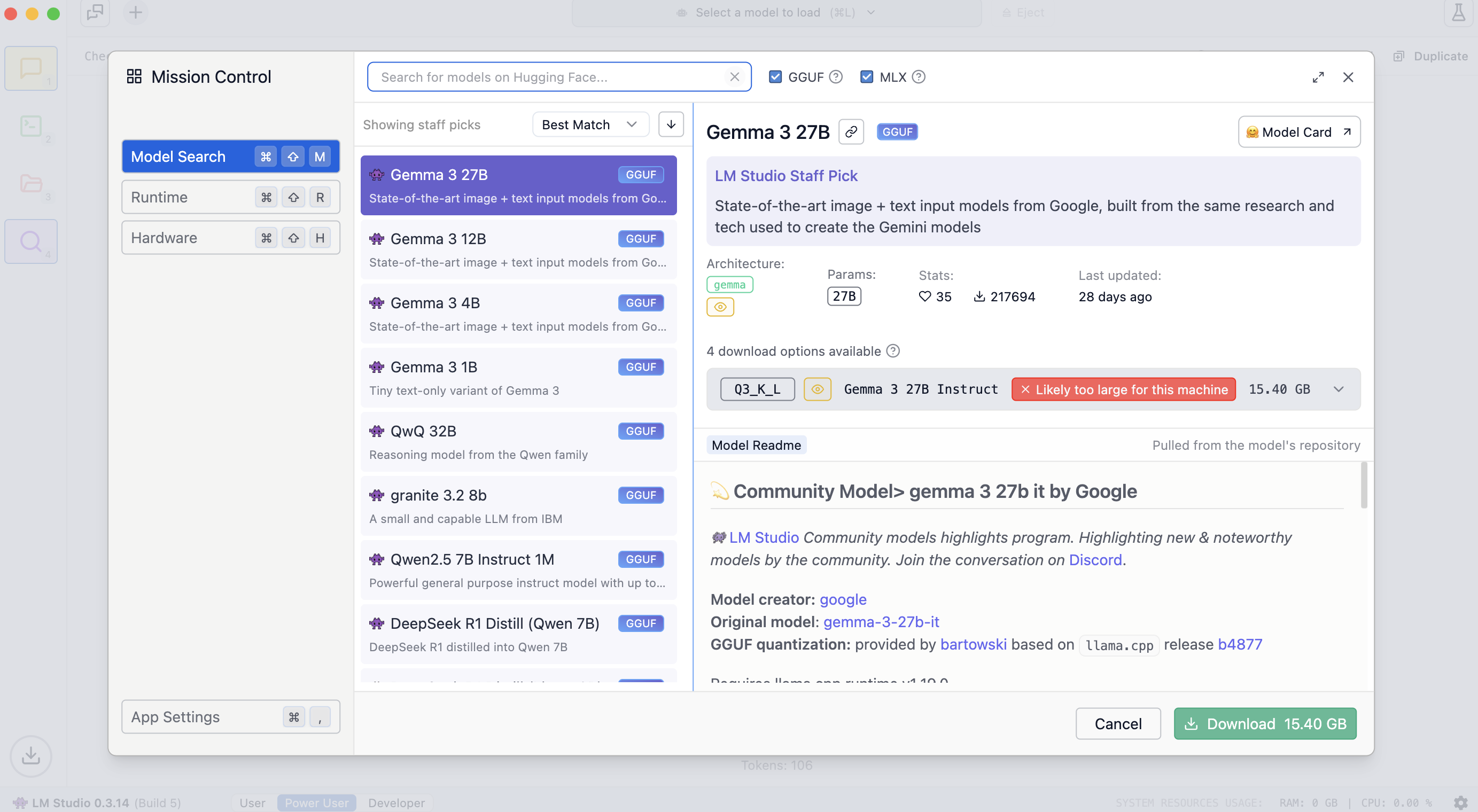
Remember that model size impacts performance. Models with 7-14 billion parameters work well on most modern computers, while larger models (30B+) require more powerful hardware.
STEP 4: Start Using Your Local AI
With Ollama:
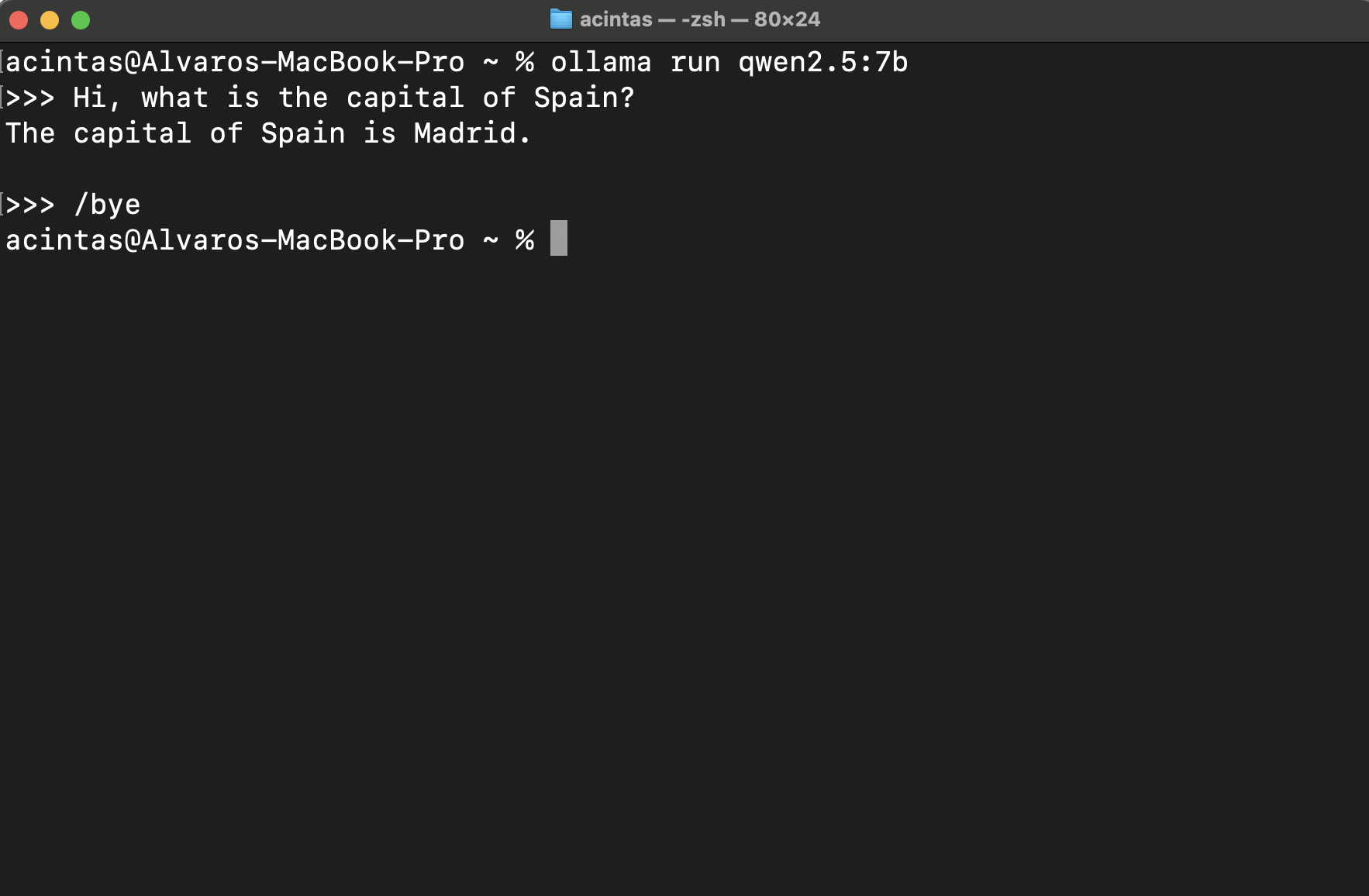
- In your terminal, type ollama run followed by the model name you downloaded
- Once loaded, you'll see a prompt (typically >>>) where you can type your questions
- Type "/bye" when you're finished to exit
With LM Studio:
- From the chat interface, select your downloaded model
- Click "Load Model" to activate it
- Use the chat interface to interact with your AI just like you would with online services









CustomersWhy Schools love Athena
Community of 8k+ members.
I used to spend hours creating differentiated worksheets with limited impact. Now, I can see exactly where each student is struggling in real-time. I noticed six students struggling with fraction division conceptually, so I pulled them for a targeted mini-lesson while others continued progressing independently.

FAQs
Is Athena safe and compliant with educational privacy standards?

Can Athena be used for different subjects?
How does Athena handle feedback and improve its AI models?
How does Athena provide personalized learning for each student?
What is Athena, and how does it help teachers and students?
How can I get my school or district on board?
How does Athena support responsible AI use for students?
What happens with student data?
Related blogs

2025-06-16 06:28:00 K-12
The Socratic Method of Teaching: Save These Examples & Tips

2025-11-18 11:17:00AI
Magic School AI vs 6 of the Most Mentioned AI for Teachers: Which Tool Is the Best for You?

2025-08-22 23:29:00AI
48 Best ChatGPT Alternatives: ChatGPT is Not the Only Tool for Education
2025-10-20 07:30:00How To
How To Use Perplexity AI for Teaching: Feature Deep Dive + Actionable Use Cases

2025-01-26 21:16:00News
Must-Read Top 10 Trends in Education 2025 and Actionable Insights for Teachers
2025-04-21 17:18:00News
10 Must-Have AI Tools for Teachers in 2025: Enhance Classroom Engagement with ChatGPT and Beyond
2025-08-27 03:13:00K-12
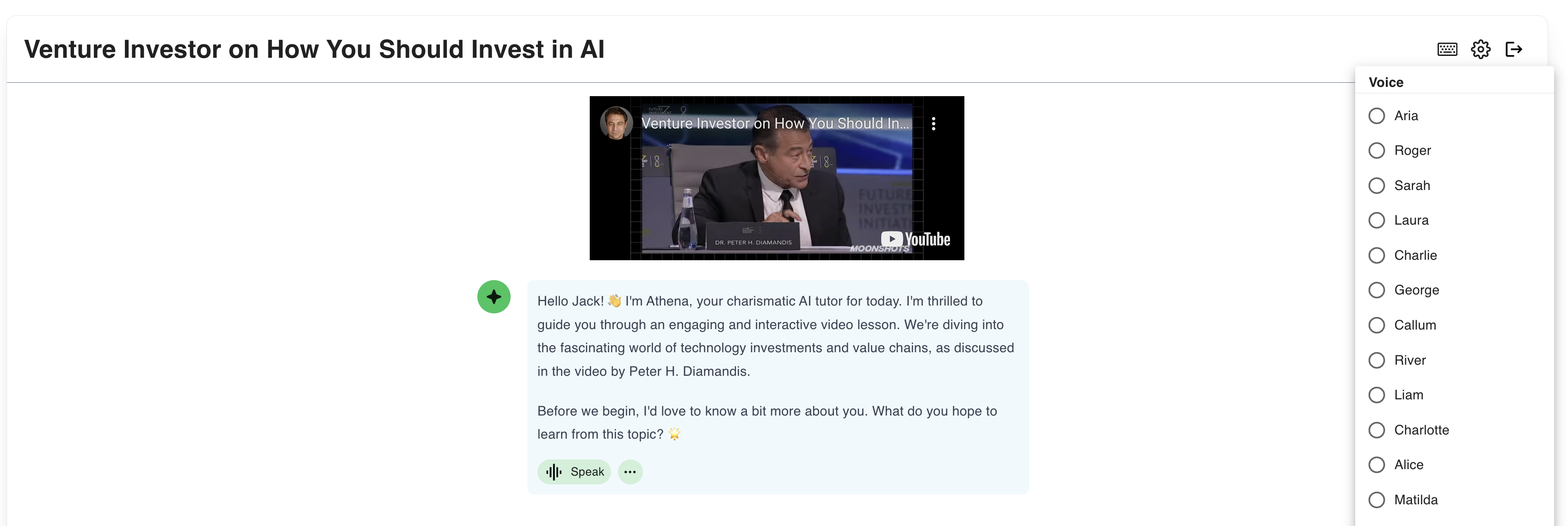
How Athena AI is Transforming K-12 Education Challenges Today
2025-06-04 04:56:00Guide
How to run AI privately on your own computer

2025-06-04 04:56:00New
Learn a new language with ChatGPT Voice
2025-10-22 07:30:00K-12
Top 8 Free Word Cloud Generator Apps You Need to Try in 2025
2025-02-14 04:28:00K-12
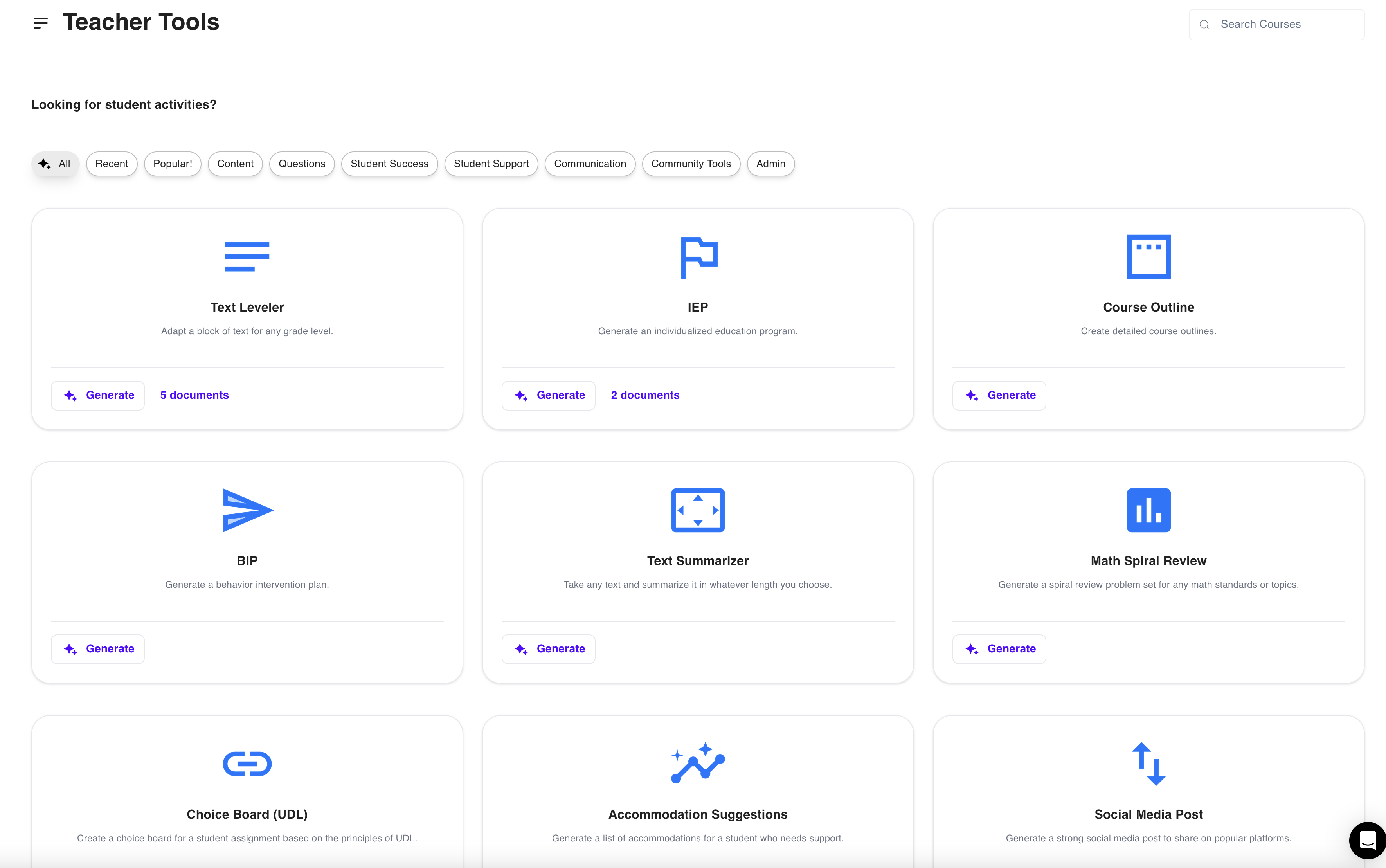
8 Best AI-Powered Teaching Assistants For the Busiest Teachers in 2025

2025-04-21 17:18:00AI
10 Effortless Ways to Use AI for Lesson Planning

2025-02-18 04:28:00AI
Top 20 Classroom Apps for Teachers to Use in 2025

2025-08-19 23:29:00
The 12 Best Free AI PowerPoint Generators in 2025
2025-06-08 17:09:00
The Socratic Method of Teaching: Save These Examples & Tips

2025-06-03 17:09:00
The Ultimate Gen Z Terms Dictionary for your class (Latest Top 70 Slangs You Need to Know)!

2025-05-21 10:41:00
Top 9 Key Gen Alpha Characteristics Teachers & Parents Must Know!

2025-05-25 21:39:00AI
How Easy It Is to Create a ChatGPT Lesson Plan: A 7-Step Guide for Beginners

2025-06-02 04:56:00Updates
How to generate comprehensive research reports with Perplexity Labs
2025-05-05 22:56:00
How to get ChatGPT to stop lying: 6 actionable tips for product managers

Secure, Private, and Built for Schools


